

30th January 2026
Getting Started With LINICS – Part 3 – Reconnaissance with ZathrICS
In our previous post we gave an overview of the tools available in LINICS. In this third post, we will be providing a deeper dive into our first LINICS exclusive tool, ZathrICS.
ZathrICS provides a wrapper around Nmap functionality to enable a more guided approach for performing active scanning in OT networks.
ZathrICS is named after Zathras from Babylon 5. In Babylon 5, Zathras was the keeper of the great machine and knew all of its secrets.
Disclaimer: Whilst ZathrICS has been designed to provide a more restricted technique for active scanning in OT networks, there is still a risk when performing any kind of active scanning against OT devices, especially legacy devices. As with any active scanning, care should be given when performing active scanning against live environments.
Launching Zathrics
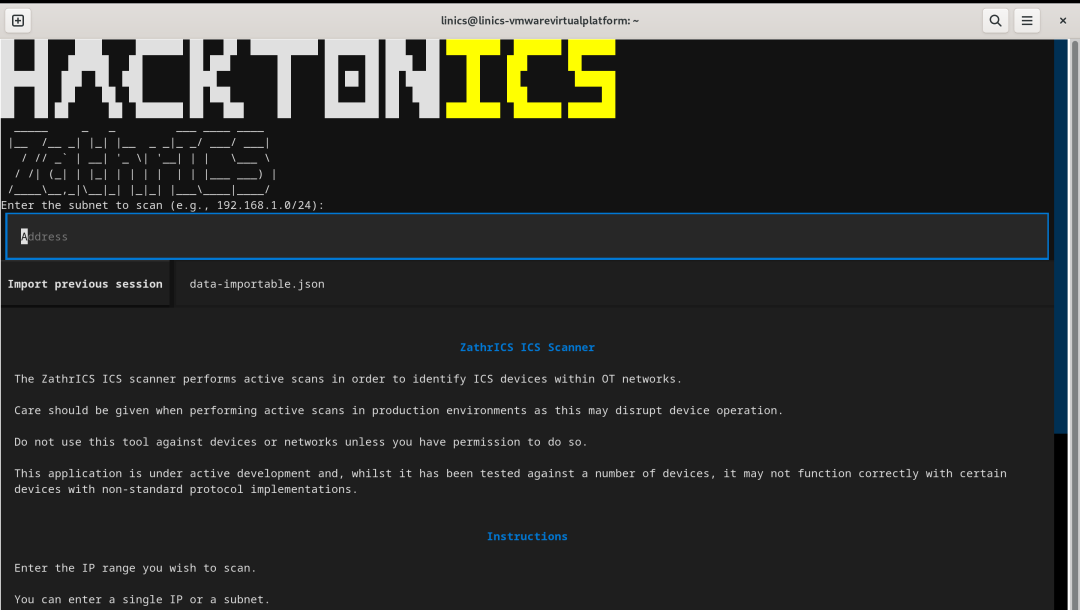
ZathrICS can be launched via the Applications Menu (where it can be found under "06. Discovery" and "08. Collection" folders), via the LINICS launcher on the taskbar, or by typing " sudo zathrics" in a new terminal. If launching from the terminal, specifying sudo rights is required to allow Nmap to perform vendor identification based on MAC addresses, but all other features will work without sudo rights. If launching from the application menu or LINICS launcher, a new terminal will open with ZathrICS launched with sudo rights - you may need to enter your password to allow this. Once launched you will be greeted with the ZathrICS welcome screen:
Using ZathrICS
ZathrICS is built using the Textual framework. Once in the session, you can navigate either using your keyboard only, using your tab key to move between items, or you can use your mouse to click on elements.
To exit the application, you can either simply close the open terminal session, or press ctrl+q on your keyboard, which will terminate the ZathrICS process.
Setting a Scan Target
On the welcome screen, there is a text input field where you will need to enter a target IP or range of IP addresses. ZathrICS will perform host discovery against the target IP(s) to identify active hosts.
For a single target, simply enter the IP you wish to target and press the return key whilst your cursor is still within the box.
To scan for multiple IPs, you can use standard Nmap target formatting. For example, to scan an entire subnet, you can add a subnet mask to the end of the IP address. For example, to scan for all active IPs in the 192.168.2.0 - 192.168..2.254 range, you would enter the target as "192.168.2.0/24". You can also specify more precise ranges within each octet using comma separated lists of dashed ranges. For example, entering "192.167.2.9-10" will scan IPs 192.168.2.9 and 192.168.2.10. The online Nmap book has a useful guide for defining targets.
Note that currently ZathrICS uses ICMP scans to identify active hosts, so will not be able to identify hosts which do not respond to ICMP pings, or in networks where ICMP is blocked. Support for non-ICMP host discovery will be made available in a future version.
We are going to scan one of our training boxes, so we will enter the target as "192.268.2.1/24" to find all active hosts:

Main Results Screen
Once you have entered a target and pressed enter, ZathrICS will perform host discovery and will move onto the main scanning interface:
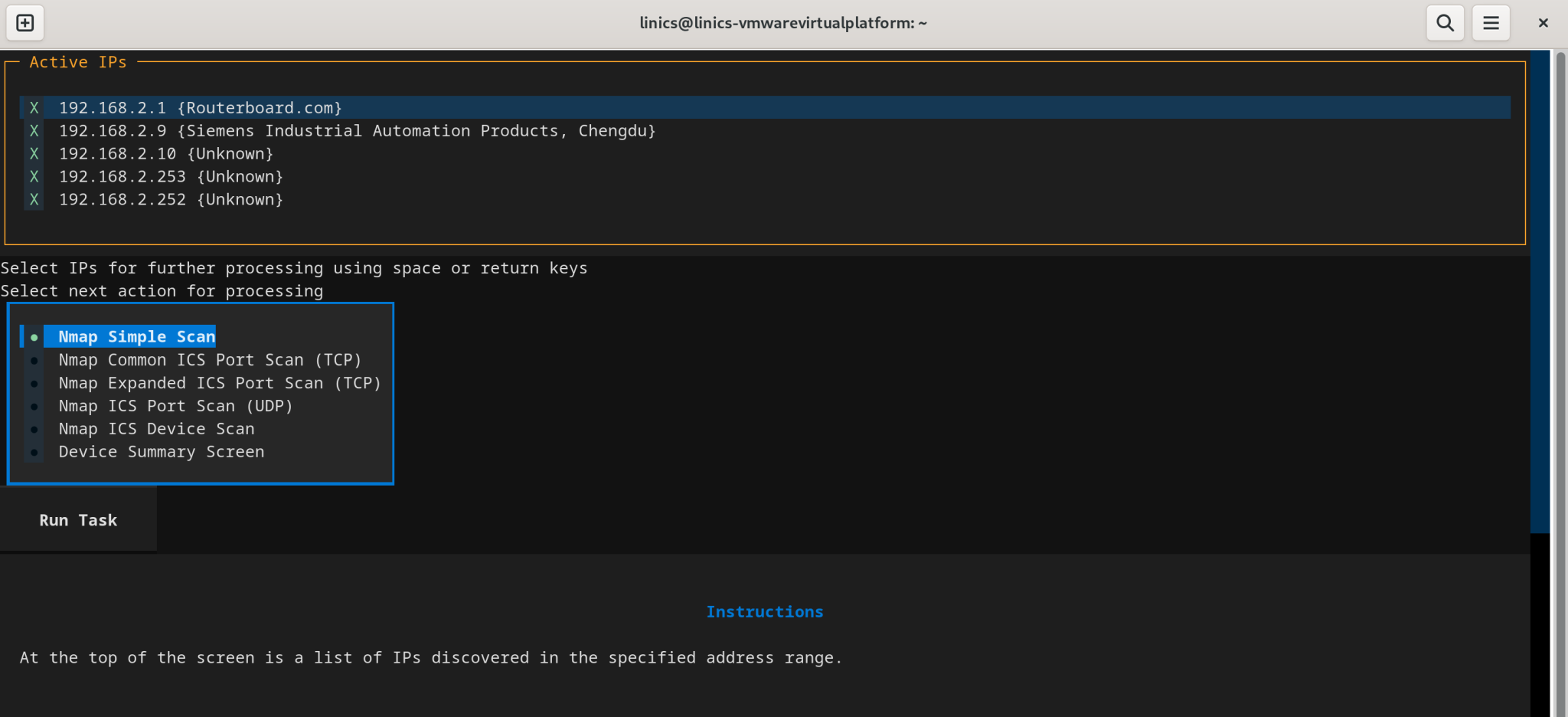
The main scanning interface displays a list of the detected active hosts within the target IP range. As can be seen above, this scan resulted in 5 detected hosts. Each host in the list has an IP address, and if detected by Nmap, the hardware vendor in brackets after the IP. As can be seen, the first device, with IP 192.168.2.1, shows a vendor of "Routerboard.com" - this is the Mikrotik router within the box. The second device, with IP 192.168.2.9, is shown to be a Siemens device. This is not a definitive result- it relies on Nmap knowledge of the vendor MAC addresses and so it can miss vendors but provides a useful extra source of information when scanning.
Within the results, we can select IP addresses that we wish to ignore by unchecking the box next to them. For example, we know that the IP addresses ending in 252 and 253 represent my LINICS virtual machine, and the host laptop, so we can ignore those going forward.
Below the results section are the main options for further scans that can be applied:
Nmap Simple Scan
This will perform a simple Nmap port scan, equivalent to running "nmap `<IP>` ". This will scan the IP for the 1000 most commonly used ports.
Nmap Common ICS Port Scan (TCP)
This will perform a simple Nmap scan of the provided IPs to check for TCP ports commonly used by industrial protocols. On the next screen, you can select the protocols for which you wish to check.
Nmap Extended ICS Port Scan (TCP)
This will perform a simple Nmap scan of the provided IPs to check for a more extensive list of TCP ports used by industrial protocols. On the next screen, you can select the protocols for which you wish to check.
Nmap ICS Port Scan (UDP)
This will perform a simple Nmap scan of the provided IPs to check for UDP ports commonly used by industrial protocols. On the next screen, you can select the protocols for which you wish to check.
Nmap ICS Device Scan
This will utilise Nmap scripts to interact with industrial protocols, and attempt to retrieve device specific information. Scanning will only be allowed on devices which are known to have an industrial port open, so you should run the "Nmap Common ICS Port Scan" action first.
Device Summary Screen
This will display all currently known information about the scanned devices.
To select one of these scans, choose the scan from the list by selecting the radio button next to the task, and then press the "Run Task" button below. We will now demonstrate some of these functions.
Scanning for Common ICS TCP Ports
We will first demonstrate the common ICS TCP ports scan. We start this by selecting the "Nmap Common ICS Port Scan (TCP)" option on the main screen, and selecting "Run Task". This will bring up the port scanning screen:
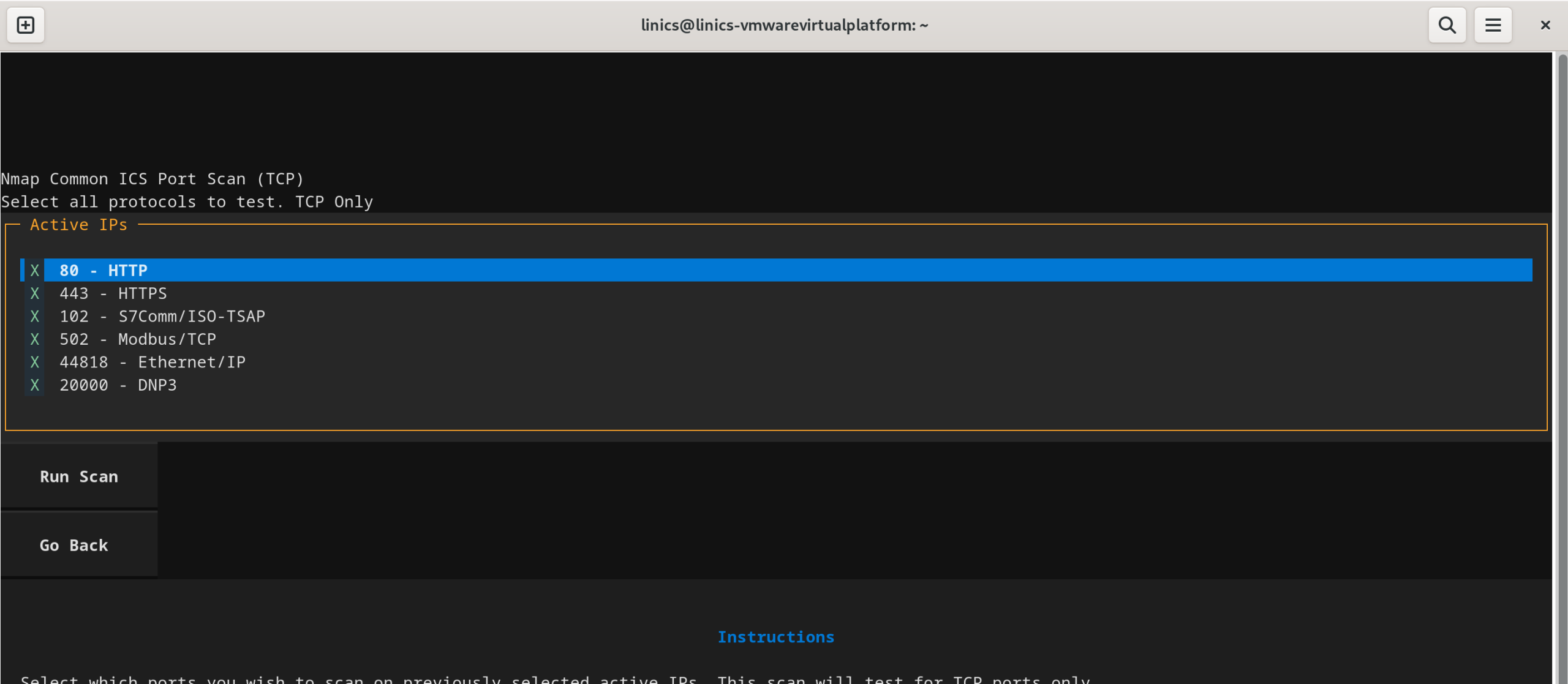
This presents a list of commonly used ICS specific TCP ports. This list can be curated if required to further restrict the scanned ports. If a protocol you wish to scan for is not in this list, then you can try the Expanded port scan option from the main screen which has more options.
This scan will use the list of IPs selected on the main interface screen. We are going to test for all of the common TCP ports, so we will leave all ports selected. We then press "Run Scan" to run the scan. Note that the screen may freeze when the scan is running - this is normal! Be patient - ZathrICS does not use any Nmap speedups for safety, so scanning a few IPs may take a minute or two depending on your network environment. Once the task has finished, we will see the port scan results:
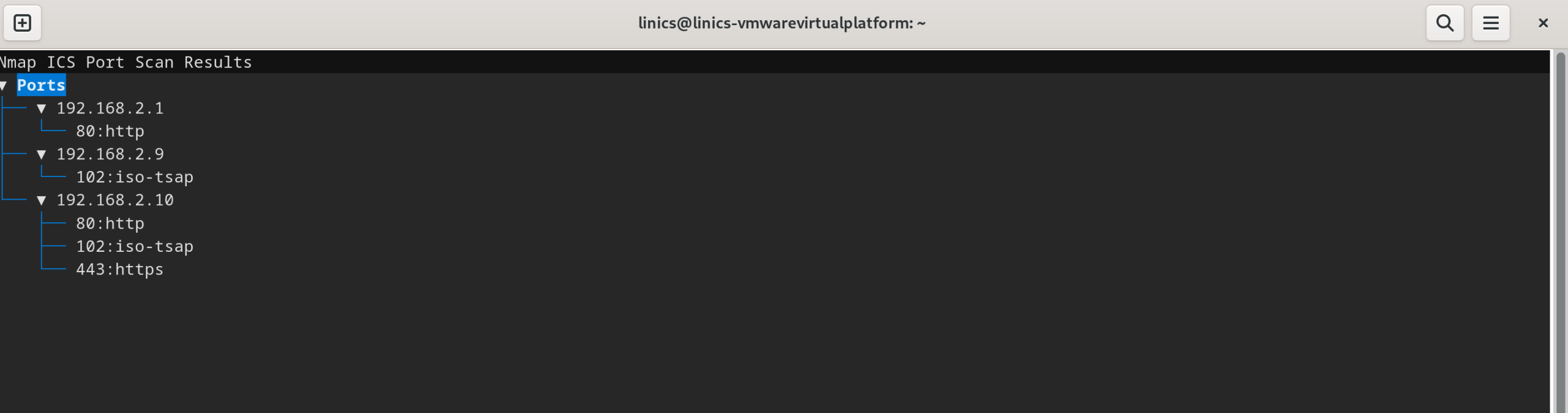
As can be seen in these results, devices 192.168.2.9 and 192.168.2.10 both have port 102 open, labelled as "iso-tsap" by nmap. As we know this is likely a Siemens environment from detection of Siemens hardware addresses, we can make an assumption that these open ports represent Siemens S7Comm or S7CommPlus. We can confirm that by using a device scan. Press the "Go Back" button to return to the main screen.
Device Identification Scans
ZathrICS can use Nmap's built in ICS specific NSE scripts to fetch device specific information. Selecting "Nmap ICS Device Scan" from the main screen will bring up the options menu:
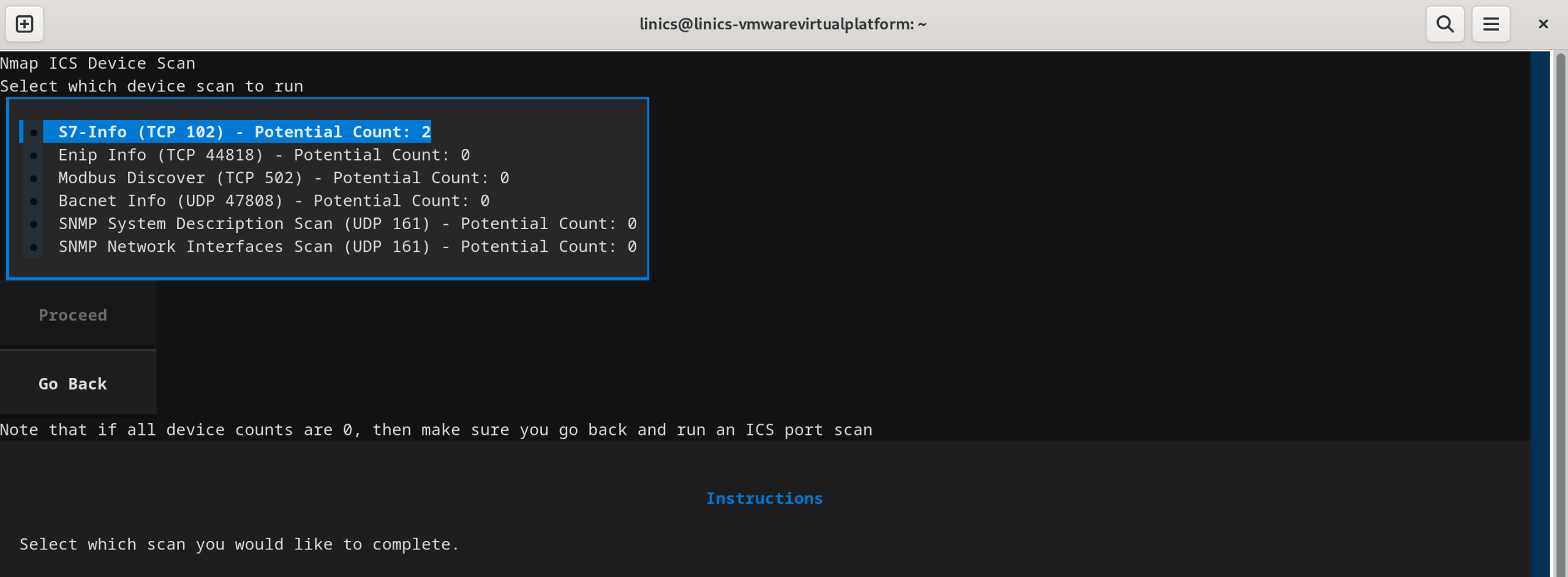
This screen uses previously collected results from port scans in order to identify devices which can be scanned using the scripts. ZathrICS will only allow scans of devices for which the relevant port has been detected as open. In this case, we have 2 devices that have port 102 open, and so we can select that scan to perform. If all counts are zero, then go back to the main screen and make sure you run a port scan first. We are going to select the S7-Info scanner which can identify Siemens devices.
On the next screen, you can confirm which IPs with the relevant port open you wish to scan, then press "Run" to perform the scan. The results will appear below:
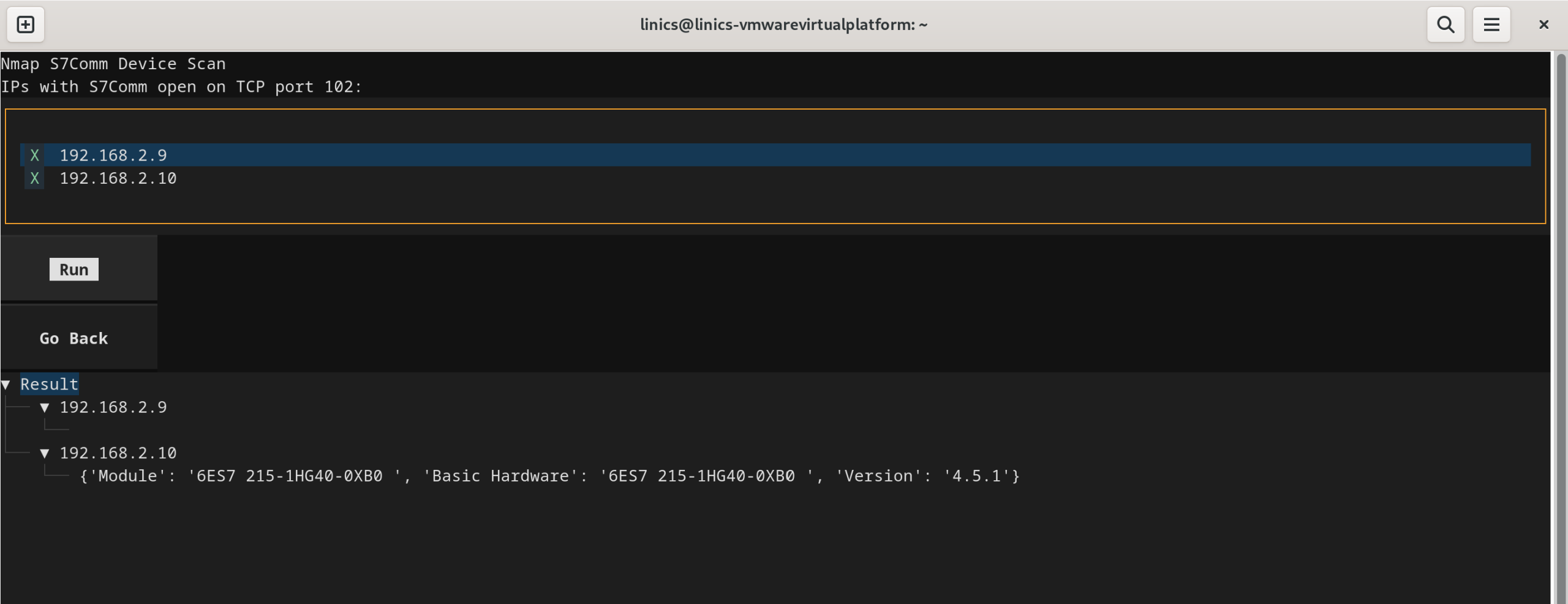
In this case, only one device returned a result (a Siemens 1215c PLC). The device with IP 192.168.2.9 did not return a result even though we know this is a Siemens device with port 102 open - this is the KTP700 HMI screen in the box - these do not respond to the S7-Info script.
Device Summary Screen & Exporting and Importing Results
The "Device Summary Screen" option on the main screen provides a summary of all information collected about all devices within the target range:
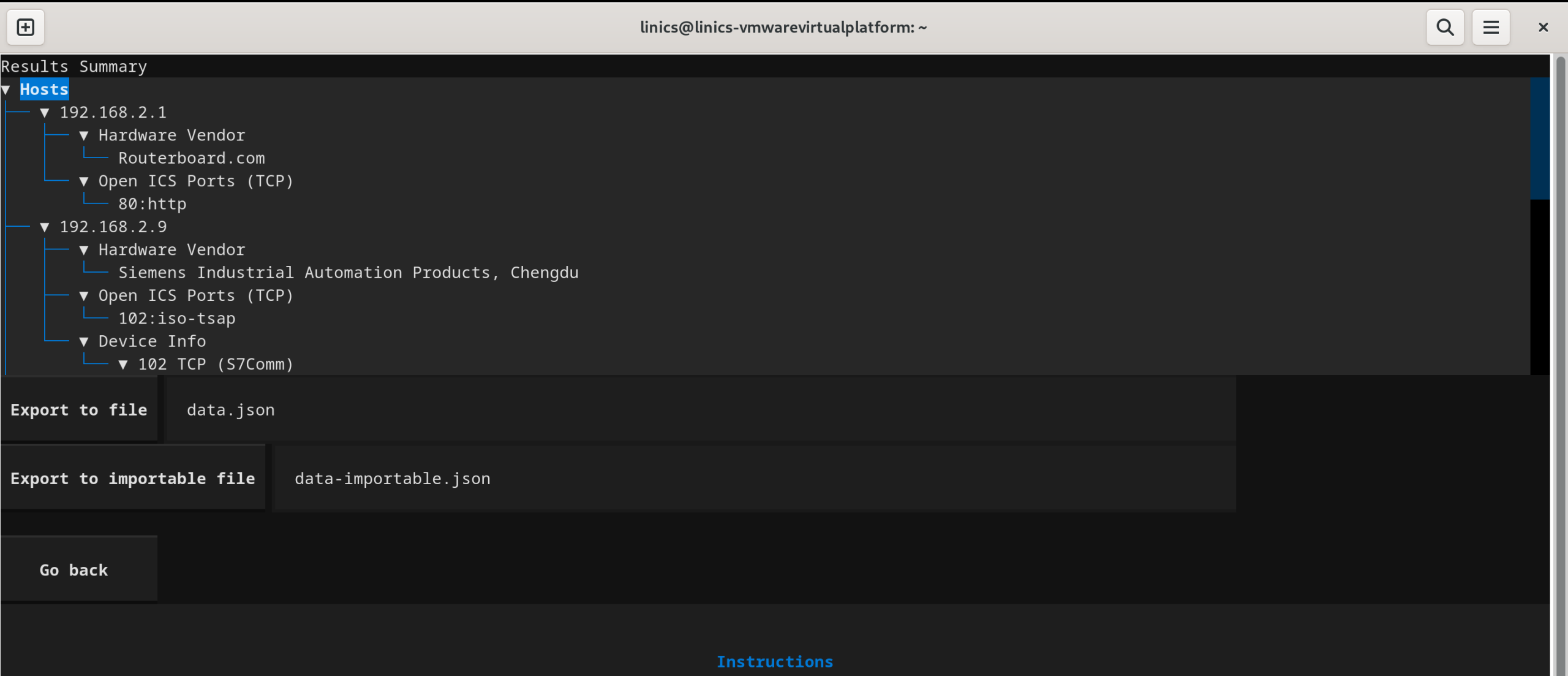
This screen is updated as you perform different scans within ZathrICS.
This is useful, however we wish to save our results so we can look a them later, or import them into other tools. There are two options for exporting.
The "Export to file" will export the results to a plain, human readable JSON file. To save the results, enter a file name in the text box and click the "Export to file" button. This will save the file in the directory from where you ran ZathrICS, but you can also enter an absolute path to save elsewhere.
If you would like to save your ZathrICS session so you can reload it later, then the "Export to importable file" option saves the results as a JSON file which contains serialised versions of the internal ZathrICS data structures, meaning the results can be reloaded into ZathrICS and you can continue where you left off! Once you have saved an importable file, launch ZathrICS and instead of entering an IP range, enter the filename in the box below the IP target range, and press the "Import previous session" button. You will then be taken straight to the main screen, with all previous results loaded.

Summary
We hope you have found this introduction to ZathrICS useful. We are always looking for feedback on ZathrICS - please get in contact if you have any suggestions or wish to contribute!