
16th January 2026
Getting Started with LINICS – Part 2 – Tools Overview
In the second in this series of "Getting Started with LINICS" posts, we are going to provide an overview of the tools included in LINICS, how to find them within LINICS and provide an introduction to the LINICS launcher.
Not installed LINICS yet? Take a look at the last post in this series, where we provide an overview on how to install LINICS.
Tools included in LINICS
LINICS comes pre-loaded with a number of existing open-source tools for assessing ICS devices and services. These cover a variety of device types and protocols. Some of these are standalone tools, and others are extension or plugins for existing frameworks such as NMAP and Metasploit. We have also included a number of Python libraries into a virtual environment, such as python-snap7 and pycomm3, which allow interaction with devices over common industrial protocols.
We also include some more generic tools that have relevance in ICS environments, such as BurpSuite Community Edition and the Nikto scanner, which can be useful for testing web servers on devices.
A particular challenge of the open source tooling is a lack of maintenance - many of these tools have not been updated in a number of years which results in challenges around dependencies - some may need Python 2, or much older versions of libraries. To help overcome this, the majority of these tools have been dockerised within a number of containers, providing stable environments ensuring they will continue working despite wider system updates.
The full list of tools mapped to the MITRE ATT&CK for ICS framework can be found on the main LINICS page. A more detailed description of each tool can be found on the LINICS Github.
The LINICS Menu
The primary way to launch tools in LINICS is via the menu, similar to the Start menu you will find on Windows. This can be found on the launcher bar:
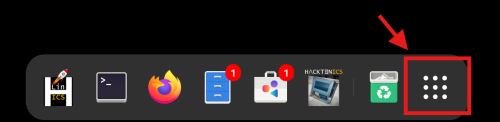 Clicking this will bring up the LINICS menu:
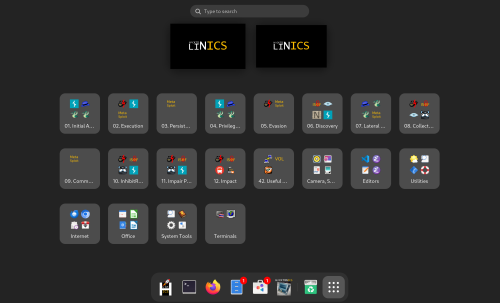
Within this menu, tools are grouped according to the ATT&CK for ICS tactics. Clicking on one of these will open the folder, and show all the tools that map to that tactic. For example, if you select "06. Discovery":
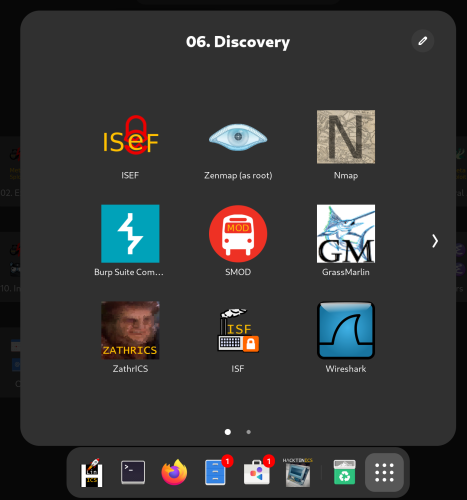
Clicking on one of the tool icons will then open the tool either directly, or will launch a terminal session with the tool loaded. For tools which run as interactive sessions, such as smod, these will open directly into the tool. For script based tools, such as PLCScan, these will open a terminal within the container, where you will then have to run the tool (instructions will be provided):
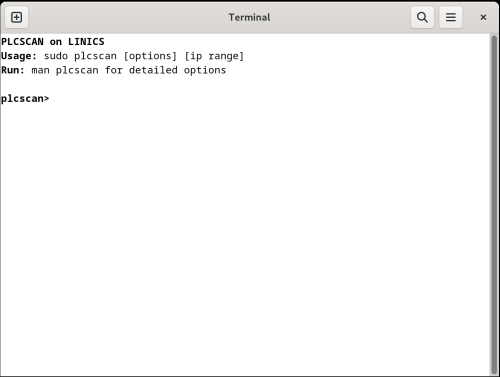 Note that your home directory is mapped into the container, allowing you to access your files if required.
The LINICS Launcher
The LINICS launcher acts as both the manual for LINICS, as well as an additional way to launch tools. It can be opened by clicking the launcher icon on the taskbar:
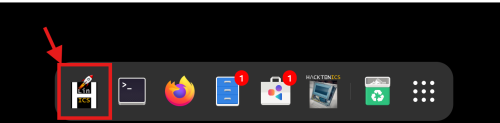 This will open up the launcher:
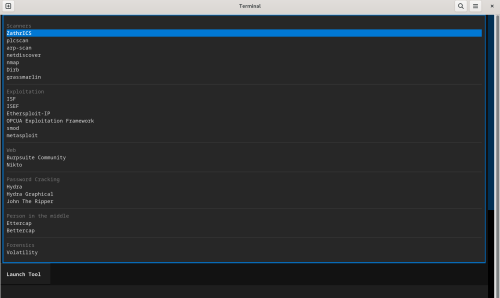
Whilst this opens in a terminal, it is a fully interactive program that can be navigated by keyboard only, or also a mouse can be used for scrolling and clicking on items and buttons.
The launcher provides a list of tools grouped by overall functionality. Opening up the page for a tool will give an overview the tool and where it should be used, an overview of how to launch the tool, and also acknowledgements with a link to the original tool authors and associated repositories, where more detailed usage instructions may be available. You can also launch the tool by clicking the "Launch Tool" button above the description. Here is an example of the launcher page for PLCScan:
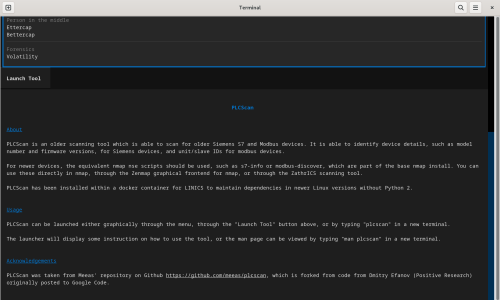
Terminal Launching
If you wish, all tools can also be launched directly from a terminal by typing the name of the tool. For example, to use PLCScan directly from the terminal, you can just type "plcscan" and the tool is directly available:
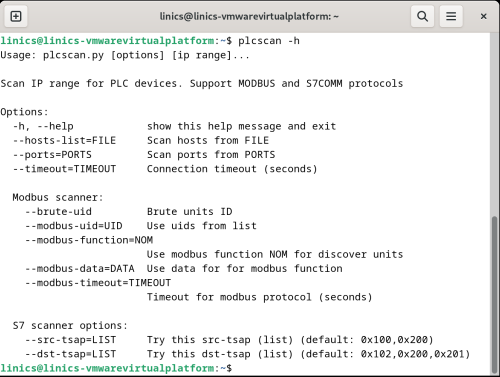
Although this appears like the tool is running natively, it is actually still being run from the docker container!
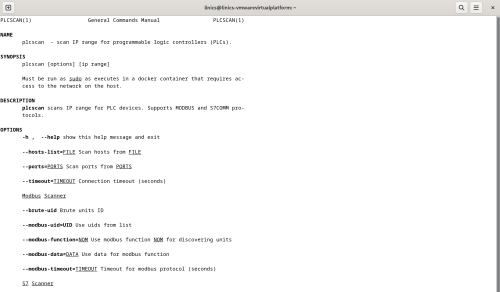
If you would like some additional help on tools, the majority of tools have man pages available, accessible by typing "man <toolname>" into the terminal, for example "man plcscan":
Contributing and Tool Suggestions
We're always looking for more tools to add to LINICS. So if you have a tool you have made which you would like to be included, or know of other open-source tools which can be added to the list, then please do get in touch! You can also submit a ticket via the GitHub page.
Conclusion and Next Time
Hopefully this gives you a bit more detail on what is available in LINICS and the different ways to access tools.
In the next post, we will provide a deeper dive into Zathrics, a tool developed specifically for LINICS!